

Setting up Time Zone and Enabling Network Time Sync (NTP) on Linux & Windows Cloud Servers
The NTP (Network Time Protocol) is an Internet protocol that is used to synchronize the time on your system with a centralized Network Time Protocol server. It also analyses the timestamp values including the frequency of errors and the stability.
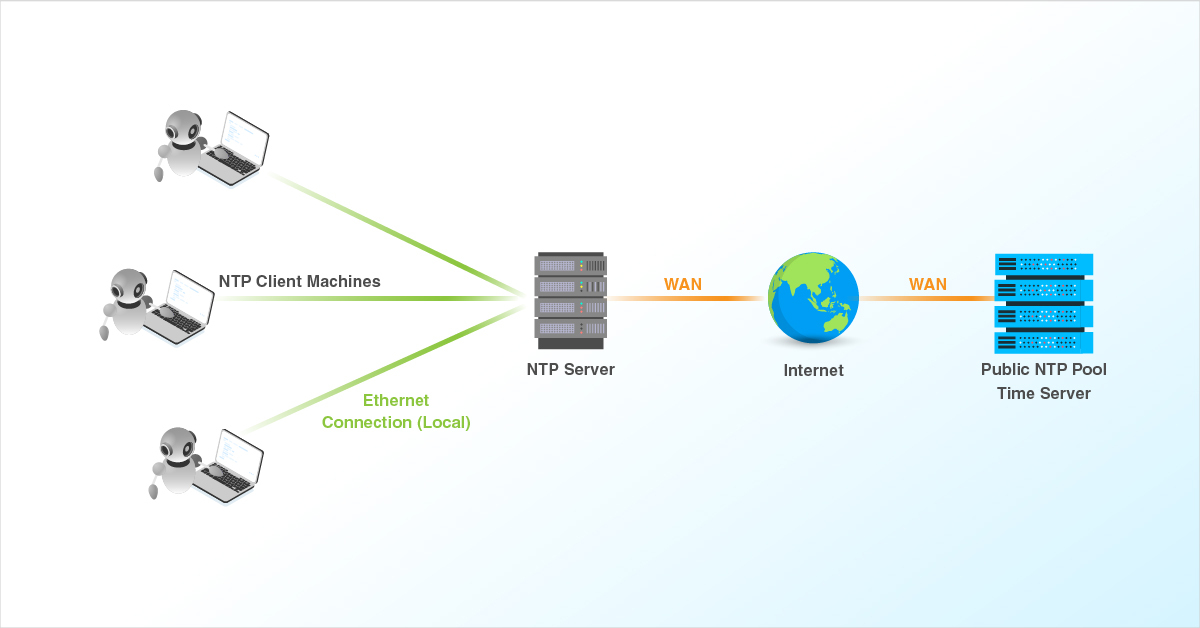
See the instructions for setting up time zone and NTP specifically of CentOS, Debian, Ubuntu and Windows OS below.
CentOS
-
Configure the system clock in CentOS server.
# timedatectl -
Display the current time and date.
# timedatectl status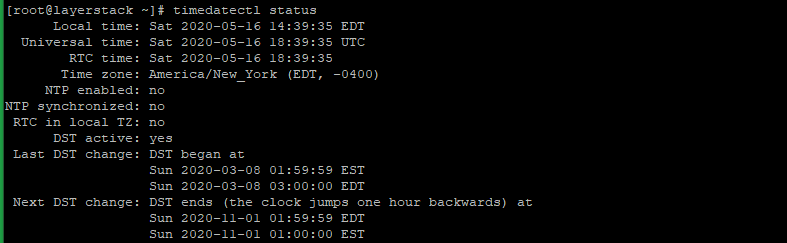
-
Display all available Time zones.
# timedatectl list-timezones
-
Display a particular Time zone under Asia starting with the alphabet
H.# timedatectl list-timezones | grep -o "Asia/H.*"
-
To change or set a Time zone you can use the below command. E.g. Change to Hong Kong.
# timedatectl set-timezone Asia/Hong_Kong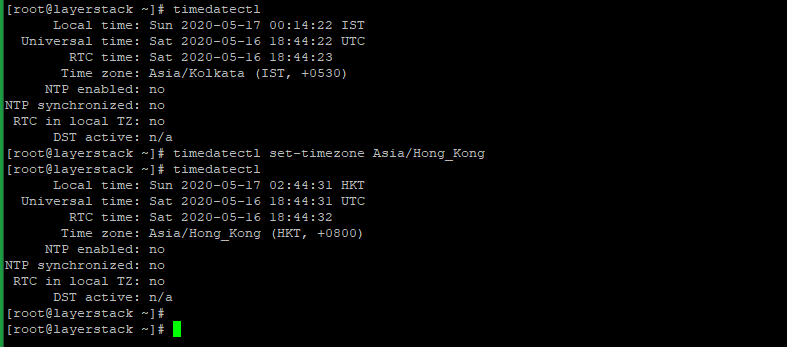
-
To enable NTP to synchronize time with Internet time.
# timedatectl set-ntp yes
Ubuntu & Debian
-
Configure the system clock in Ubuntu & Debian servers.
# timedatectl -
Display the current time and date.
# timedatectl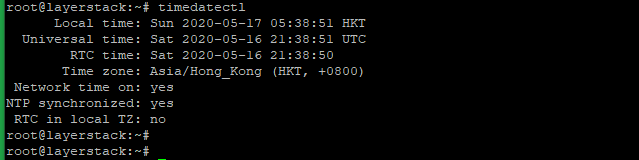
-
Display all available Time zones.
# timedatectl list-timezones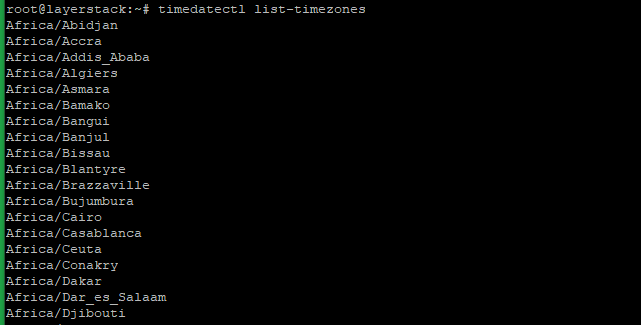
-
Display a particular Time zone under Asia starting with the alphabet
H.# timedatectl list-timezones | grep -o "Asia/H.*"
-
To change or set a Time zone you can use the below command. E.g. Change to Hong Kong.
# timedatectl set-timezone Asia/Hong_Kong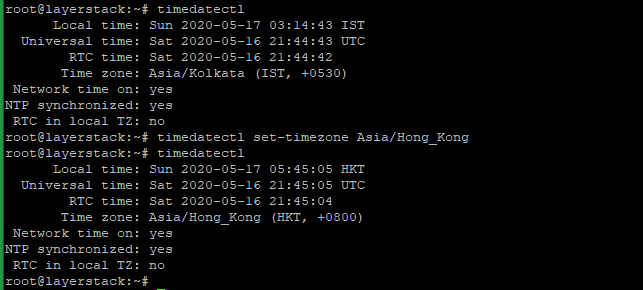
-
To enable NTP to synchronize time with Internet time.
# timedatectl set-ntp on
Fedora
-
Configure the system clock in Fedora server.
# timedatectl -
Display the current time and date.
# timedatectl status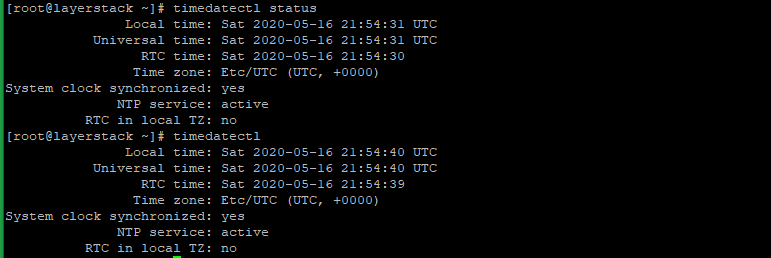
-
Display all available Time zones.
# timedatectl list-timezones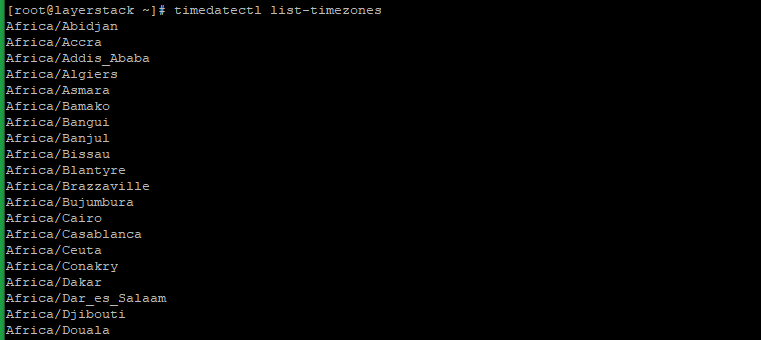
-
Display a particular Time zone under Asia starting with the alphabet
H.# timedatectl list-timezones | grep -o "Asia/H.*"
-
To change or set a Time zone you can use the below command. E.g. Change to Hong Kong.
# timedatectl set-timezone Asia/Hong_Kong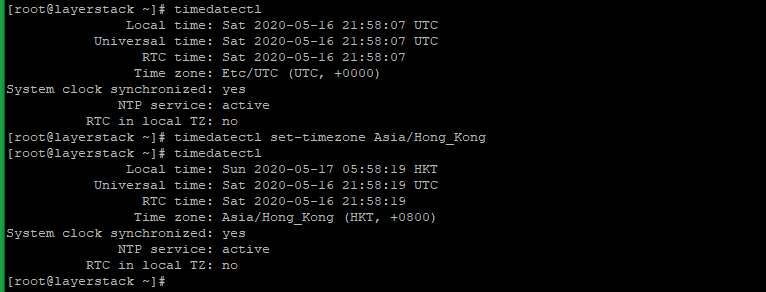
-
To enable NTP to synchronize time with Internet time.
# timedatectl set-ntp yes
Windows OS
To configure with NTP or Internet Time:
-
Right-click on the time in
Taskbarand then clickAdjust date/time. -
Click
Internet Timetab, and then clickChange settings….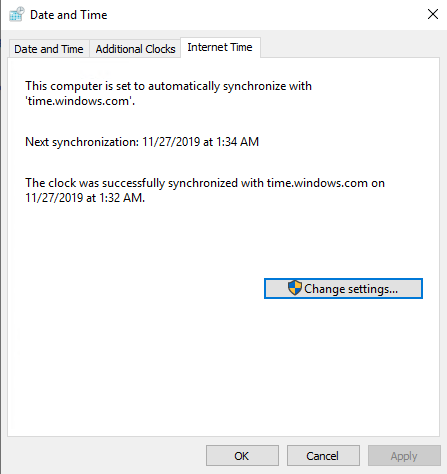
-
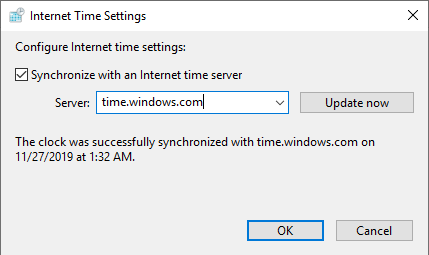
Check the
Synchronize with an Internet time serverbox and select an available Internet time server from the drop-down menu.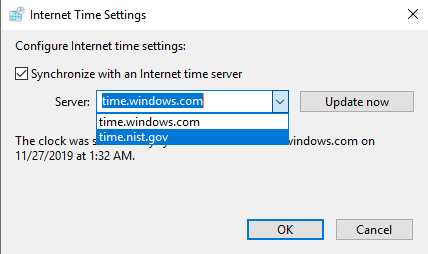
-
Click
Update nowand thenOK.
To change Time zone:
-
Right-click on the time in
Taskbarand then clickAdjust date/time. -
Click
Date and Timetab. and then clickChange time zone….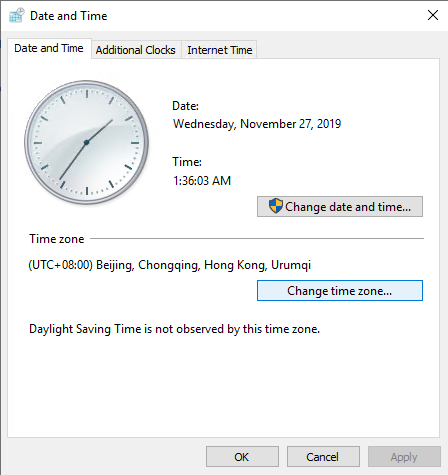
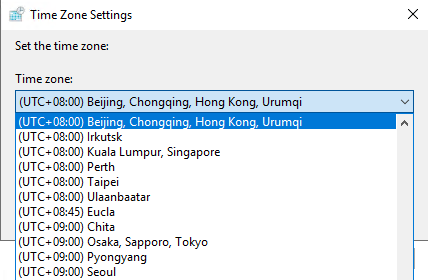
-
Select a needed Time zone from the drop-down menu.
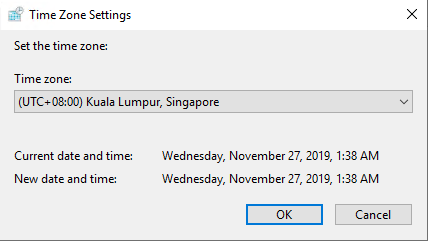
-
Click
OKand complete.