

How to enable detailed error reporting from IIS on Windows Cloud Servers
Detailed error reporting is one of the popular error debugging features in the IIS web server. By default, the IIS web server error messages are disabled from being sent to users in order to prevent exposing more information outside the server.
In order to enable detailed error messages for debugging/development purposes, then need to make some adjustments in the IIS web server settings.
See the following instructions for enabling detailed error reporting for the IIS web server on Windows OS
-
Open the IIS web server manager console from your server.
You may open
IIS Managerfrom the Administrative Tools program group, or you can run the following command from Windows run prompt.inetmgr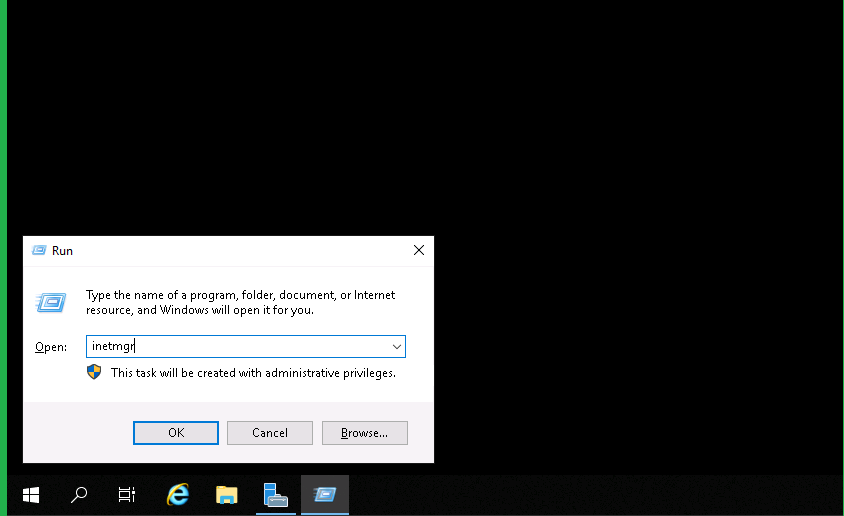
-
From the site list, click on the
domainthat needs to enable detailed error messages. and then double clickError Pagesin the Feature view.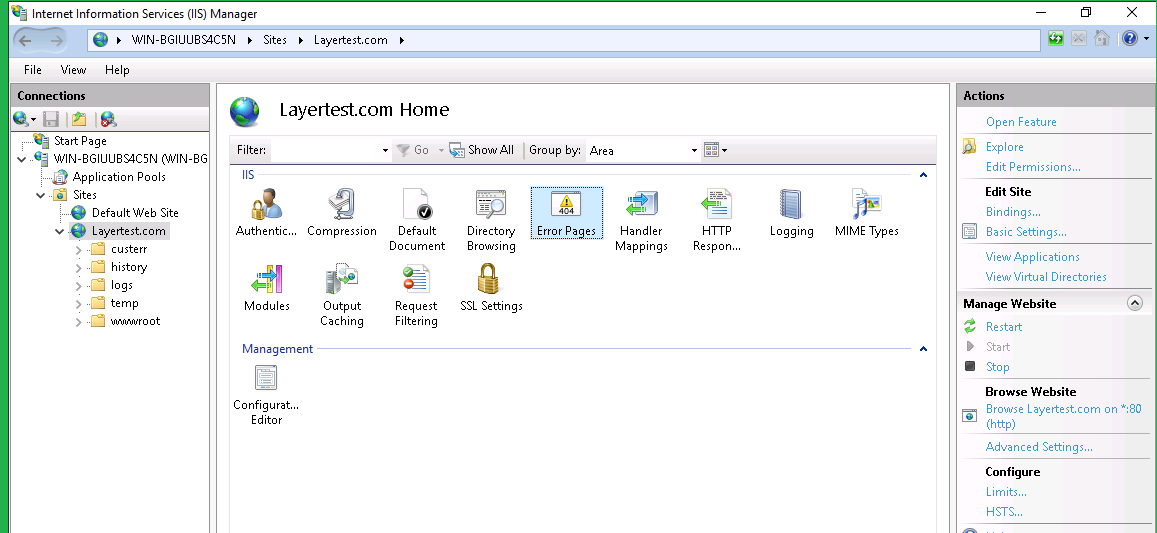
-
Click on the
Edit feature settingfrom the right side Actions menu.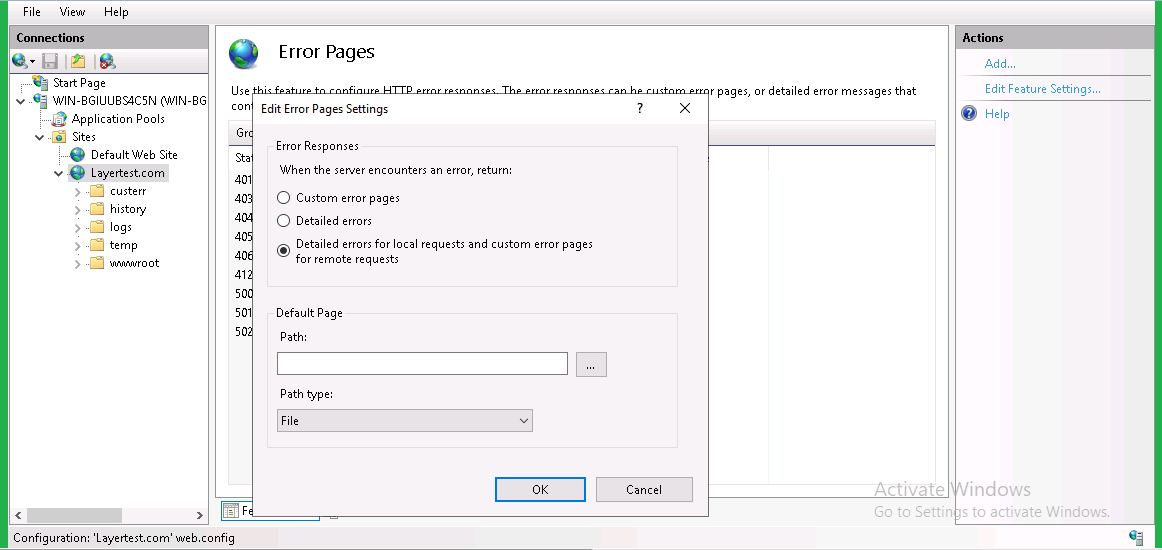
-
From the error responses list, check on the
Detailed Errorand then clickOKto save the update the changes.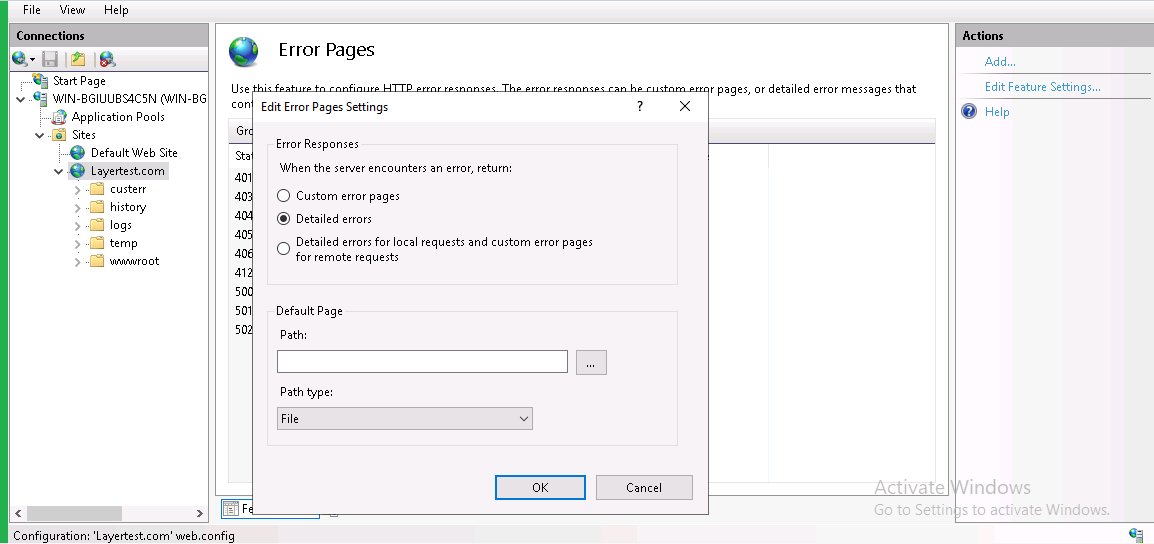
-
Once this is done, it will automatically add the following entries in the domain configuration file
(web.conf).<configuration> <system.webserver> <httperrors errormode="Detailed"> </httperrors></system.webserver> </configuration>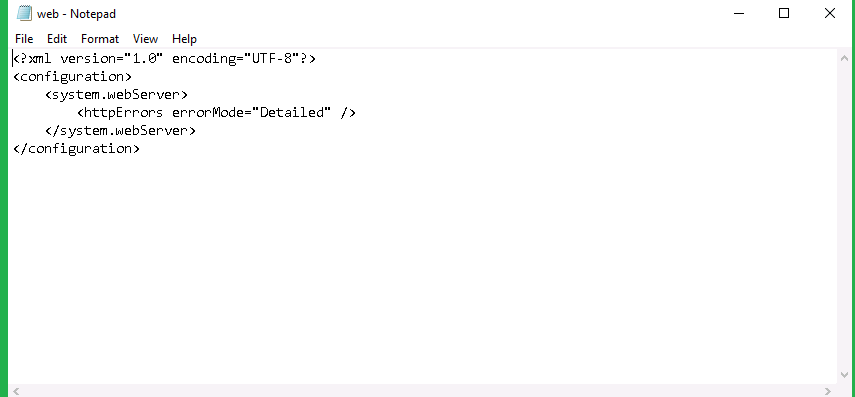
-
You can find the domain configuration file under the document root of the website. From the IIS, Right-click on the
domainand chooseExploreoption to go to the document root of the website.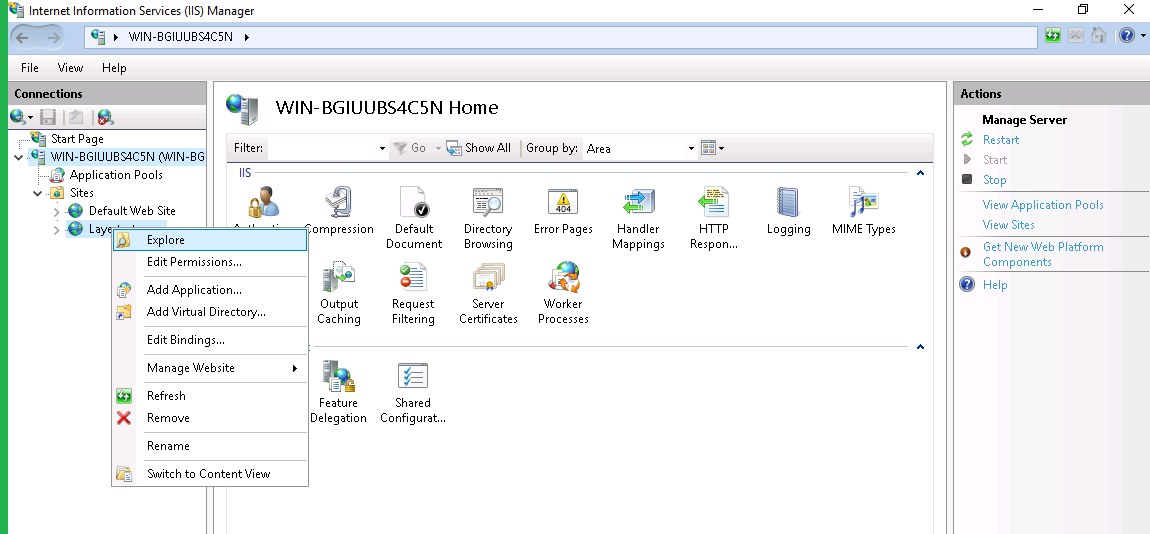
Once this you can see more details of error message while accessing the domain or domain URL
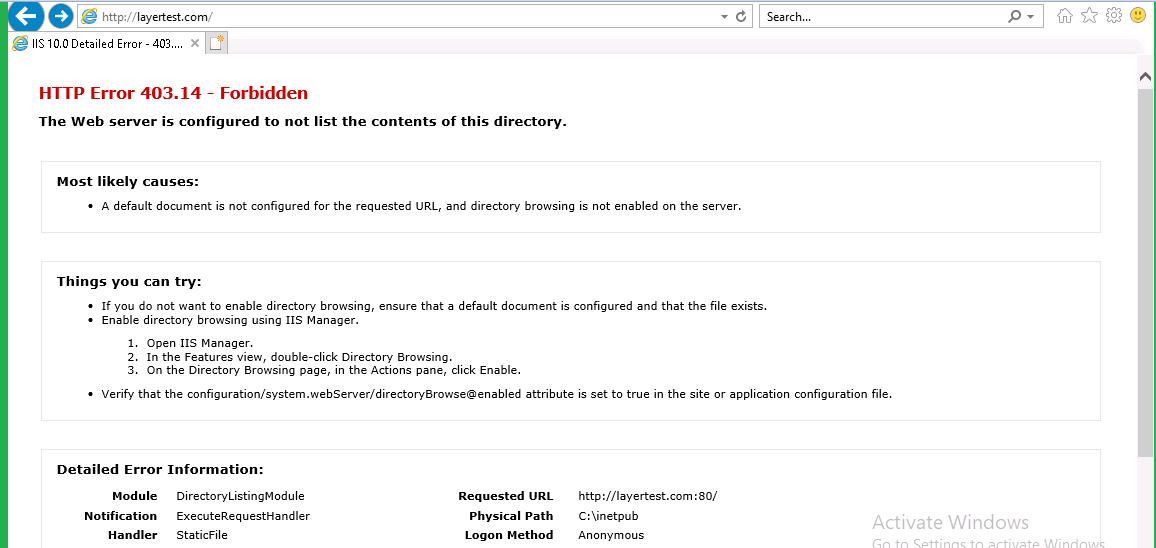
NOTE: Make sure to change the settings back once development/debugging is completed.