

How to Fix “The User Account Has Been Locked” Error on Windows Server
Why This Happens
On certain versions of Windows Server, including Windows Server 2022, the default account lockout threshold is 10 invalid login attempts. This means that after 10 failed logon attempts (even if this was not done by you), the user account becomes locked temporarily.
If your server is using the default RDP port (3389) and is accessible from the internet, it’s common for automated bots to scan and attempt logins. These repeated brute-force attempts can easily trigger the lockout threshold — even if no one is actively trying to log in with your account credentials.
It’s important to note that this does not necessarily mean your server is compromised. Brute-force traffic is common across the internet. As long as you are using a strong, secure password and do not have other vulnerable services exposed, you are likely still safe.
How to Fix It
To resolve this, you will need to log into your server using an alternative method besides RDP. Some options include:
- IPMI or KVM over IP
- VNC (if available)
- Console access provided by your datacenter or server provider
If these options are not available to you, you can try repeatedly connecting via RDP. In some cases, the account will unlock automatically after a timeout period or after many retry attempts. Once you have gained access to the server, continue following the below instructions to fix this permanently.
Steps to Disable the Account Lockout Policy
Once you have access to your server, follow these steps to disable the account lockout threshold:
- Press Windows + R on your keyboard to open the Run dialog.
- Type secpol.msc and press Enter.
- In the Local Security Policy window, navigate to:
Account Policies > Account Lockout Policy - Double-click on “Account lockout threshold”
- Change the value from 10 to 0 and press OK.
- Click OK again to apply the changes.
Once applied, it should look similar to the following screenshot:
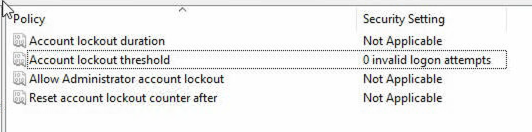
At this point, you should be able to access your Windows Server via RDP (Remote Desktop) without encountering the “The User Account Has Been Locked” error.
Final Notes
By setting the threshold to 0, you disable account lockouts due to failed login attempts. While this prevents lockout errors, you should continue practicing good server security habits:
- Use a complex, unique password for your Administrator account
- Consider changing the RDP port to something non-standard
- Enable firewall rules to restrict RDP access to specific IPs